If you have kept your fuel stops and service records in Drivvo for a while, you probably don't want to retype any of it in a new app. The good news: to export Drivvo to CSV and bring the file into LoggyCar takes only a few minutes. This guide covers the steps, what the app actually imports, and where it stops.
Why move your history instead of starting over
A fuel and maintenance log is more useful than it looks: average consumption, price per litre over time, the date of your last oil change, cost per kilometre. Starting from an empty logbook throws those reference points away. Moving your data also lets you compare two apps on identical records before deciding which one to keep.
People switch for different reasons: no subscription, a focus on Tunisia, or plain curiosity. Drivvo is a well-known app with a free plan limited to 2 active vehicles and paid tiers above it [2]. This article does not pit the two against each other. It simply shows how to take your data with you. To see what LoggyCar offers once you are in, visit the features page.
Step 1: export your data from Drivvo
According to Drivvo's FAQ, the mobile app exports to CSV only, while the web version offers Excel (XLSX), CSV and PDF [1]. In the app, the export sits in the History tab: a download icon at the top, next to the magnifying glass. The magnifier filters the list, and the exported file respects that filter [1].
- Open Drivvo and select the vehicle you want to export. One vehicle is exported at a time.
- Go to the History tab.
- For the full history, apply no filter; otherwise use the magnifier to narrow types or dates.
- Tap the download icon and choose CSV.
- Save the file or share it to your phone (Drive, email, Downloads folder).
Two things to check. First, Drivvo's website lists data export among the features of its paid plans (Individual and PRO) [1] [2], so depending on your Drivvo version and subscription the button may be missing or locked. Second, menu positions can change between versions; if you cannot find the icon, check Drivvo's own help.
Step 2: import the file into LoggyCar
LoggyCar uses a single button for every import. It is in the Profile tab, in the data section, labelled "Import data"; it also appears in the side menu and on the start screen when you have no car yet. The app recognises the file from its content: a LoggyCar JSON backup, or a CSV export from Drivvo or Fuelio. You never have to pick an import type.
- Tap "Import data" and select your CSV. The picker is deliberately not filtered by extension, because Android sometimes labels a downloaded CSV differently and would grey it out.
- Choose the destination car. The app always asks "Import into which car?", even with only one vehicle, since a Drivvo export belongs to one car. "New car (from this file)" creates the vehicle for you: you type a name and the engine type detected in the file is suggested, and you can change it.
- Read the preview: number of refuels, number of expenses and services, entries already present that will be skipped, and the odometer value the car will move to.
- Confirm with "Import". A progress bar shows how many entries have been sent.
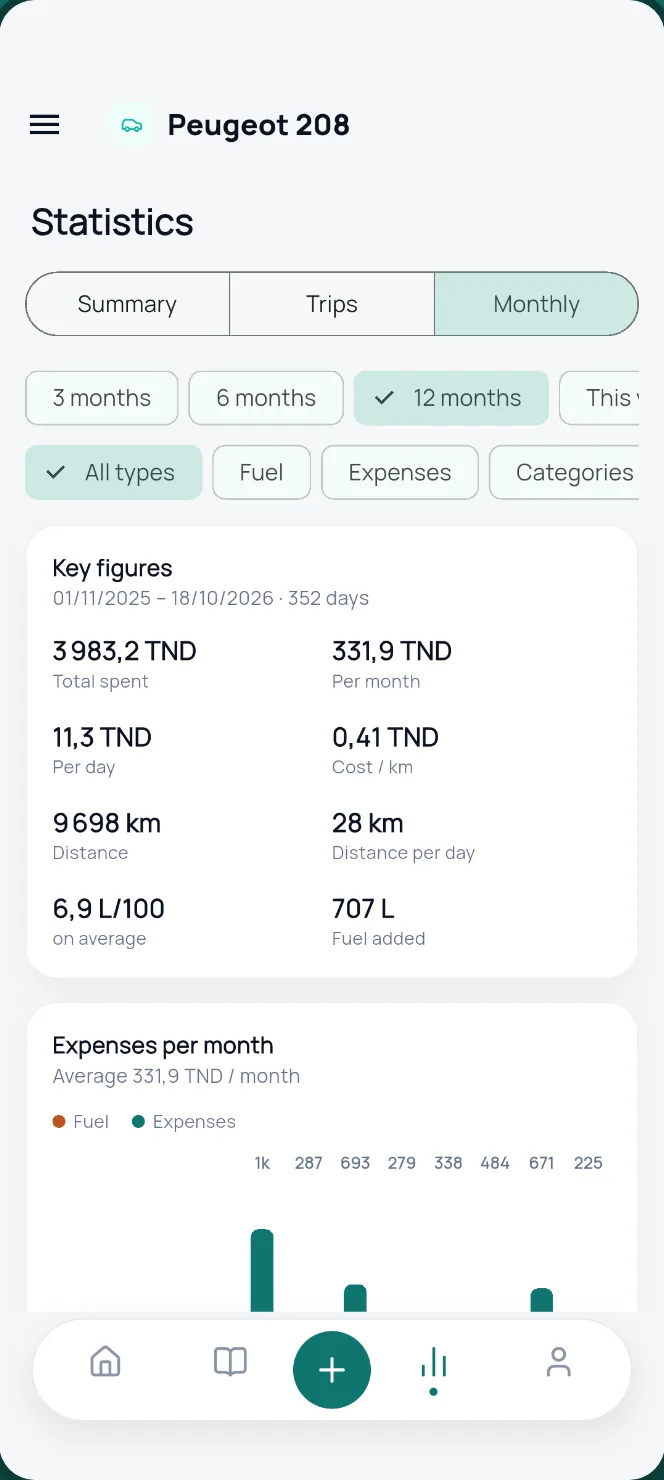
- A summary then gives the number of refuels and expenses, the date range and the total. "View my stats" opens your statistics straight away.
A worked example
Say your file covers two years: 120 refuels, 14 services and 9 miscellaneous expenses, 143 entries in all. The preview reads along the lines of "115 fill-ups and 23 expenses/services will be added". If you had already typed 5 of those fill-ups by hand, the preview says 5 existing entries will be skipped, and only the other 138 are sent. The car's odometer then moves up to the highest value in the file if it exceeds the current reading.
What is kept
| Drivvo CSV section | Becomes in LoggyCar | Fields carried over |
|---|---|---|
| Refuelling | Fuel entry | date and time, odometer, volume, price per litre, full or partial tank, station, fuel type, notes, payment method |
| Expense | Cost entry | date and time, odometer, total cost, expense type as category, place and notes, payment method |
| Service | Cost entry | same fields, service type as category; a zero-cost service is kept in the history |
Drivvo's category label is copied as is, for example "Oil change" or "Brake pads" as they appear in your file, so the wording stays the same before and after the move. The importer copes with comma or semicolon separators and with decimal commas or points, which helps when the file has passed through a spreadsheet in another locale.
Limits to know about
- Three sections only. The importer reads refuels, expenses and services. Reminders, trips and any other Drivvo modules are not carried over.
- English column headers. The code looks for columns such as "Odometer (km)", "Volume" and "Price / L". If your export uses headers in another language, or the file was edited, some values may not be read. When no section is recognised at all, the app says the file is not a Drivvo or Fuelio CSV export.
- Skipped rows. A row with no readable date, a refuel with zero volume or price, or an empty row with neither type nor cost is not imported.
- One file, one vehicle. For two cars, export two files and run two imports.
- Duplicates. Two entries count as identical when date, odometer and amount (litres for a refuel) match, so two truly identical fill-ups on the same day at the same odometer reading could be treated as one.
The review warnings
The preview flags anything worth a second look: fill-ups larger than the tank, unusual prices per litre, odometer readings that go backwards. It also warns when the fuel in the file does not match the engine type of the car you picked, which stops you pouring a diesel history into a petrol car. Nothing is corrected automatically; you stay in control and can cancel.
If the import is interrupted
If the connection drops, the app tells you how many entries went through, say 80 out of 143. Simply run the same import again: entries already sent are recognised as duplicates and skipped, so nothing is created twice. The server may also take a few seconds to wake up on the first request, which explains an initial wait.
After the move
Once the history is in, check three things: the number of entries in the logbook, the average consumption over a few fill-ups you know well, and the current odometer. To understand the calculation, read our guide on how to calculate your car's fuel consumption. You can get the app on the download page, and common questions are answered in the FAQ.